AWS Dev Environment
Sapphire's AWS development environment is built every morning at 6:00 AM and destroyed at 6:00 PM via GitHub Actions using this Terraform environment https://github.com/Sapphire-Health/Terraform-Github-AWS/tree/main/environments/dev. Modifications to add additional resources needed for testing are welcome via PR.
Access the Development Environment
Sapphire's Ansible container is deployed with Terraform as an AWS ECS container. To access the container:
- Navigate to the Sapphire AWS SSO and login with your Sapphire credentials.
- From the AWS access portal, select the "NonProd" account to access the AWS Management Console.
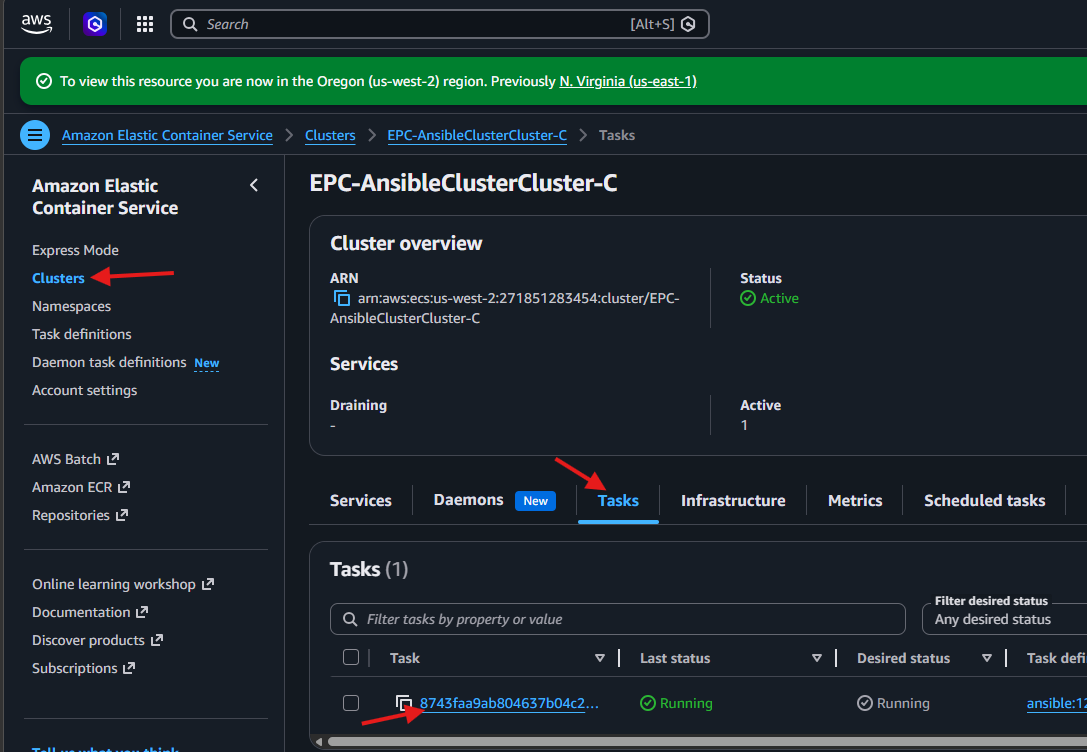
- Search for the "Elastic Container Service" and select the "Clusters" option from the left-hand menu.
- Choose the "EPC-AnsibleClusterCluster-C" cluster and select the Tasks tab. Click on a running task.
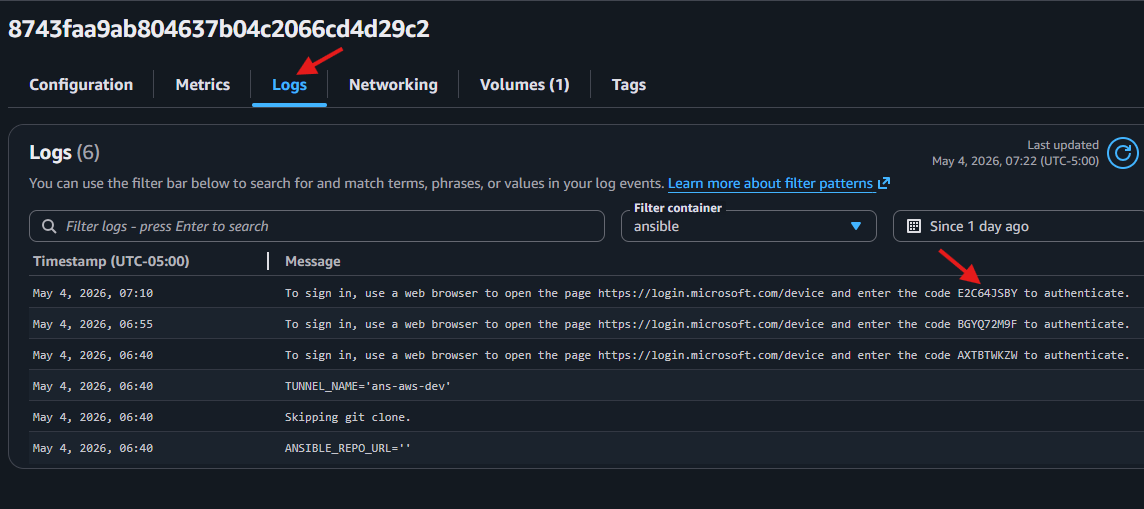
- Select the "Logs" tab and use the latest login code to authenticate the container to the VS Code tunnel at https://login.microsoft.com/device. Complete the login with your Sapphire account.
- To connect to the container's tunnel, launch VS Code, and ensure the "Remote - Tunnels" extension is installed. Click the "Open a Remote Window" button in the bottom left of VS Code with the "><" icon, and select "Connect to a Remote Tunnel". Choose "Microsoft Account," login if prompted, and select the "ans-aws-dev" tunnel.
- The required environment variables can be found within the notes of the "Development Ansible Env Vars" credential in Passbolt.
Create Additional Containers
The development environment includes a single development container. If someone else is already connected to the container with a VS Code tunnel, you may create an additional container for yourself by following these steps:
If logs like the ones below are present, it means someone is already using the container. 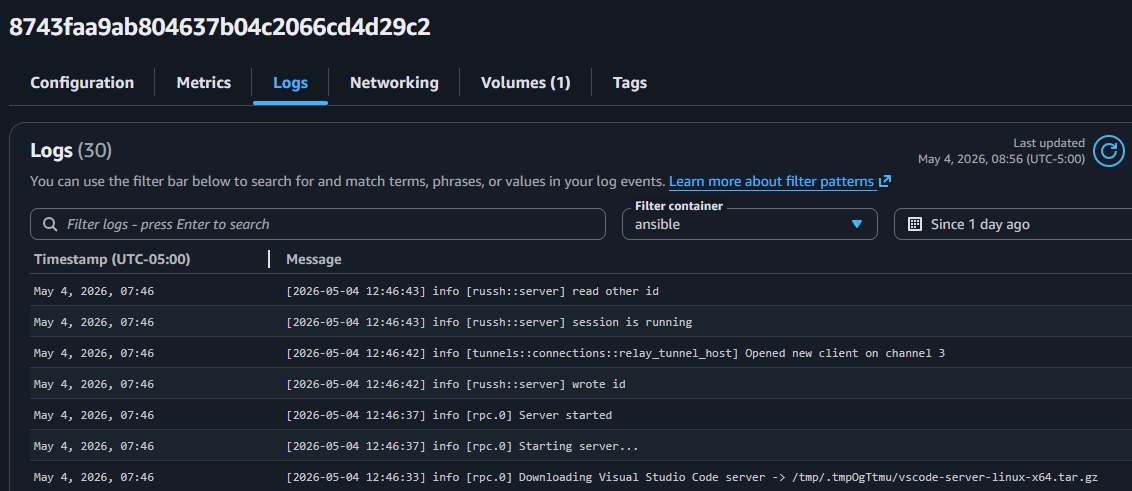
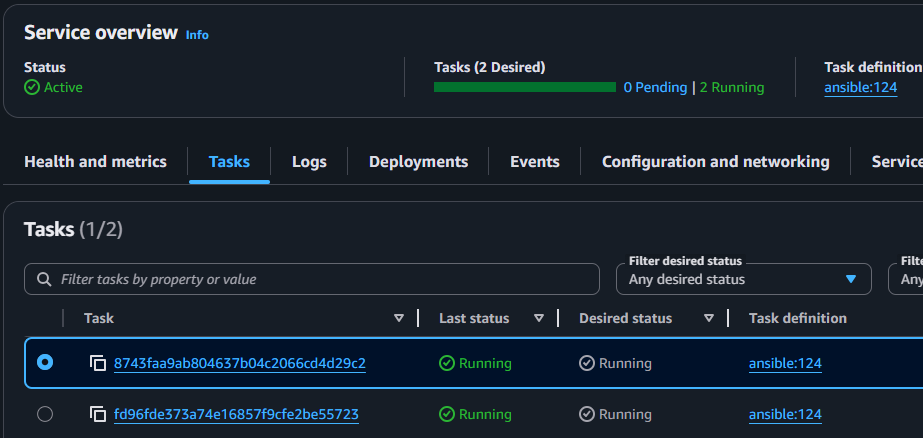
- From the AWS Management Console, navigate to the "EPC-AnsibleClusterCluster-C" ECS cluster and select the "Services" tab. Click on the "ansible" service.
- Click the "Update service" button.

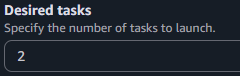
- Increase the desired tasks number by 1 and click "Update" to add an additional container.
- Navigate to the "Tasks" tab and wait for the new container to be available. Follow the same steps as above to access the new container's tunnel and connect with VS Code.